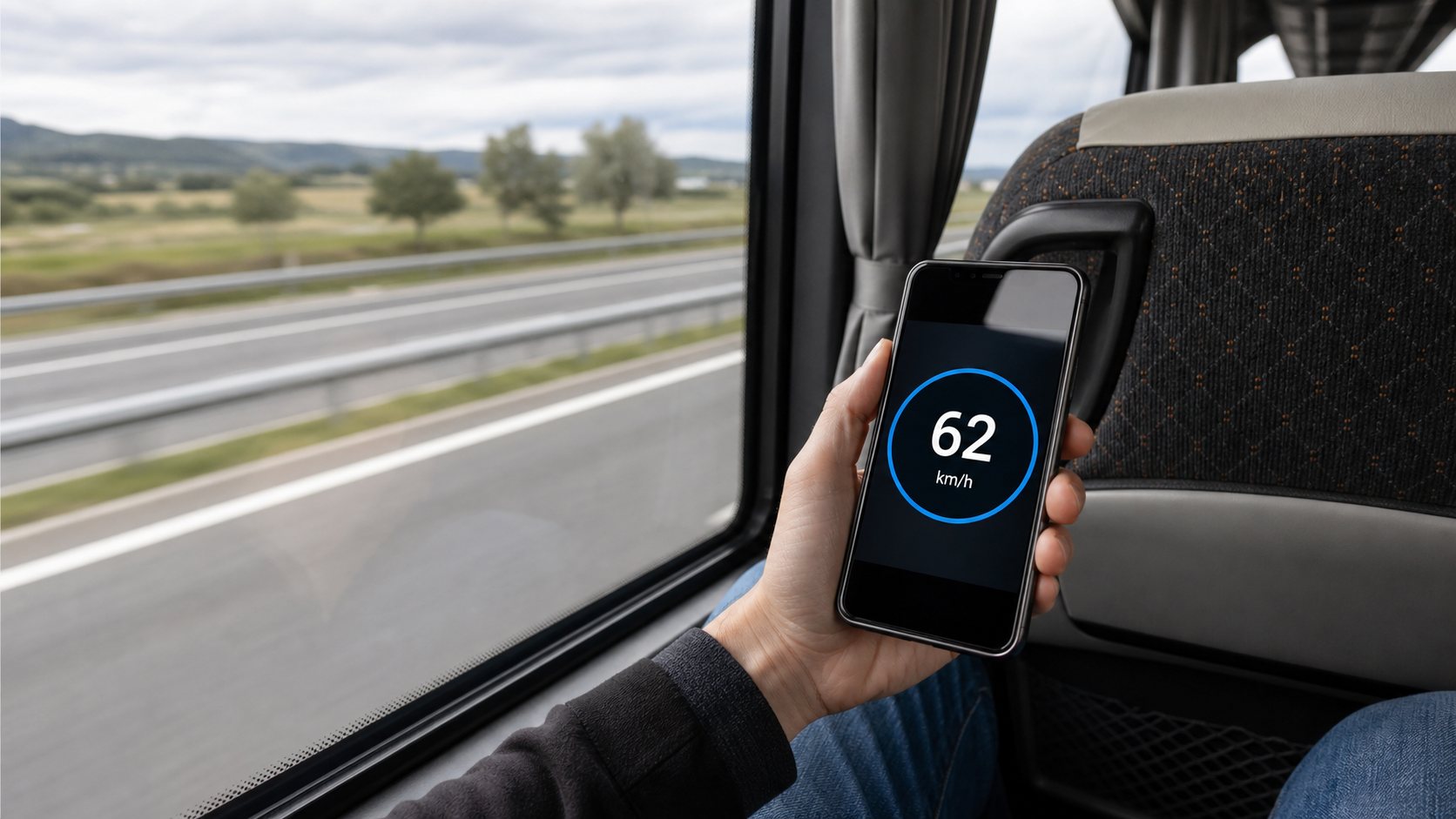
You are halfway home, the bus has finally cleared the city, and the road outside is moving faster than it feels. If you are wondering, “How fast is my bus going?”, your phone can give you a live answer in a few seconds. You do not need to install an app or ask the driver.
Open the SpeedyMeter bus speedometer, allow location access, and tap Start. Keep the phone near a window while you remain seated. The large number on the screen is your bus’s current GPS speed, available in km/h, mph, m/s or knots.
Check your bus speed now
- Open the online bus speedometer in your phone’s browser.
- Choose the unit you understand best: km/h or mph.
- Tap Start.
- When the browser asks for your location, choose Allow. On Android, precise location gives the best result.
- Wait a few seconds for the reading to settle. A window seat usually helps.
That is the whole setup. You can switch between the digital, analog and HUD displays without restarting the tracker. The speed graph is useful if you want to see how the trip changed during traffic, stops and open-road sections.

What the number on your phone means
The reading is ground speed: how quickly the phone is moving across the earth. Because the phone is moving with the bus, it works as a bus speed tracker while you are on board.
This is different from an internet speed test. A bus speed test uses location updates from your device; it does not measure Wi-Fi or mobile download speed. The browser’s Geolocation API asks for permission before it can use location, and modern browsers make that feature available on secure HTTPS pages.
The live number will naturally rise and fall. It may drop when the bus approaches a stop, enters traffic or climbs a steep road. Short jumps can also come from a weak GPS signal. Look at the reading for several seconds instead of treating one flash on the screen as exact.
Why your phone may show zero at first
A zero reading does not always mean the tool is broken. GPS needs movement and a usable signal before it can calculate a stable speed. If the bus is stopped at a light or station, zero is correct.
If the bus is clearly moving and the number stays at zero, check these common causes:
- Location permission was denied. Open the site information menu beside the address bar, find Permissions, and allow Location.
- The browser cannot use phone location. Your phone may have a separate location permission for Chrome, Safari or another browser.
- Only approximate location is allowed. On supported Android phones, enable precise location for a steadier reading.
- The signal is blocked. Tunnels, covered terminals, dense buildings and some coated windows can interfere with satellite signals.
- The bus has just started moving. Give the phone a short moment to collect several location updates.
If none of those fixes helps, reload the page, press Reset and try again near a window. Our phone speedometer guide has more permission checks for Android and iPhone.
How accurate is a live bus speed test?
In open sky, phone GPS is usually good enough to answer an everyday question such as “Are we moving at roughly 40 or 80 km/h?” It should not be treated as calibrated transport equipment.
GPS.gov notes that real-world accuracy depends on satellite geometry, blocked signals, atmospheric conditions and the quality of the receiver. Buildings, bridges and trees can make a phone’s position less accurate. The same local conditions can disturb a speed reading.
For a more useful result:
- hold the phone still rather than waving it around;
- stay near a window if possible;
- compare several seconds of readings;
- expect weaker results inside tunnels or large terminals;
- avoid judging the driver from a single brief spike.
If you want the technical background, read how accurate a GPS speedometer is. It explains signal blockage, receiver quality and the difference between GPS and a vehicle’s dashboard.
Why the reading changes so often on a bus
Bus travel is full of small speed changes that passengers barely notice. The driver eases off the accelerator for a junction, matches traffic, approaches a stop, or leaves space for another vehicle. A phone shows those changes immediately, while your body often notices only stronger acceleration or braking.
Urban routes produce a particularly uneven graph because the bus spends time stopping, pulling away and waiting. On a long intercity road, the line may look steadier. Neither pattern proves that the GPS is more or less accurate; it mostly reflects the trip.
Can you use the bus speedometer without mobile data?
GPS and mobile internet are separate systems. Your phone can receive satellite signals without an active data connection. However, you need to load the web page first, and some phones obtain their first location faster when network assistance is available.
If your connection is unreliable, open SpeedyMeter before the bus leaves the station. Keep the browser tab open. Once the page is loaded, the device may continue updating speed from location data, although behavior can vary by browser and phone.
Use it safely as a passenger
This tool is meant for passengers. Do not hand a phone to the driver, hold it where it blocks the driver’s view, or distract someone who is operating the bus. Stay seated while checking the display. If you need to move to a window, wait until it is safe.
A GPS reading is not evidence of a traffic offence, and it is not a substitute for the bus’s certified instruments. If a trip feels unsafe, focus on your immediate safety and follow the transport operator’s reporting process. Do not confront the driver while the vehicle is moving.
Useful display settings for a bus trip
The digital view is easiest to glance at because it uses one large number. The analog view feels more like a dashboard and makes gradual changes easy to see. HUD mode is designed for mirrored display, but on a bus the regular digital screen is usually simpler.
You can also enable Keep screen on during a longer check. Turn it off when you are finished to save battery. Fullscreen removes page distractions, while Reset starts a fresh session without changing your unit.
Frequently asked questions
How can I see how fast my bus is going?
Open the SpeedyMeter bus speedometer, select km/h or mph, tap Start and allow precise location. Wait a few seconds while the bus is moving.
Do I need to download a bus speed tracker app?
No. SpeedyMeter runs in a modern mobile browser. The page asks for location permission because GPS speed cannot be calculated without location updates.
Why is bus speed different from what I expected?
Traffic, stops and road conditions cause genuine changes. A weak satellite signal can also cause brief jumps. Watch the reading for several seconds before drawing a conclusion.
Does the tracker know which bus I am on?
No. It measures the movement of your phone. It does not identify the route, operator or vehicle.
Can I share the current speed?
Yes. The bus speedometer includes a Share speed option. Remember that a shared reading is a momentary GPS result, not an official record.