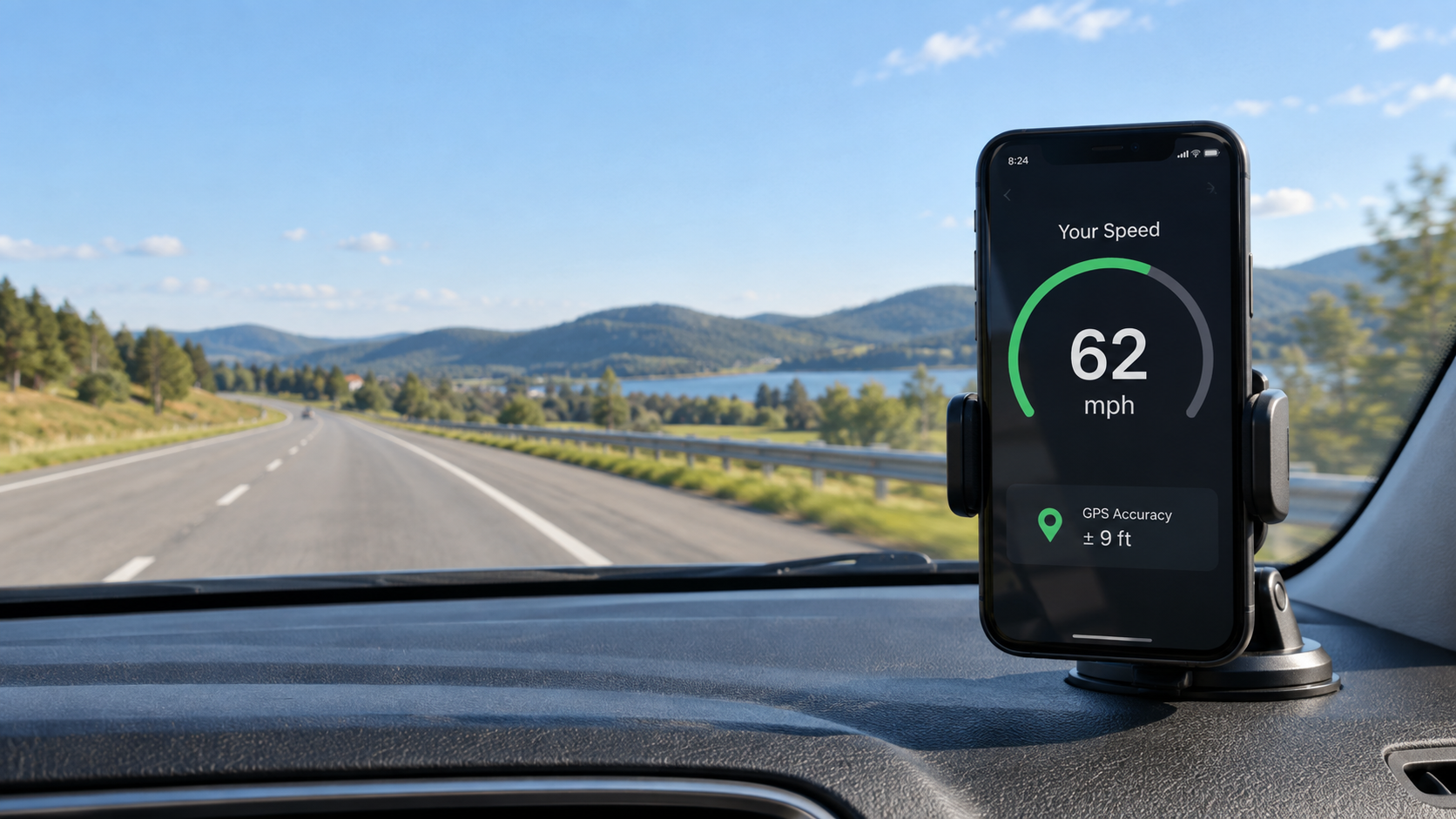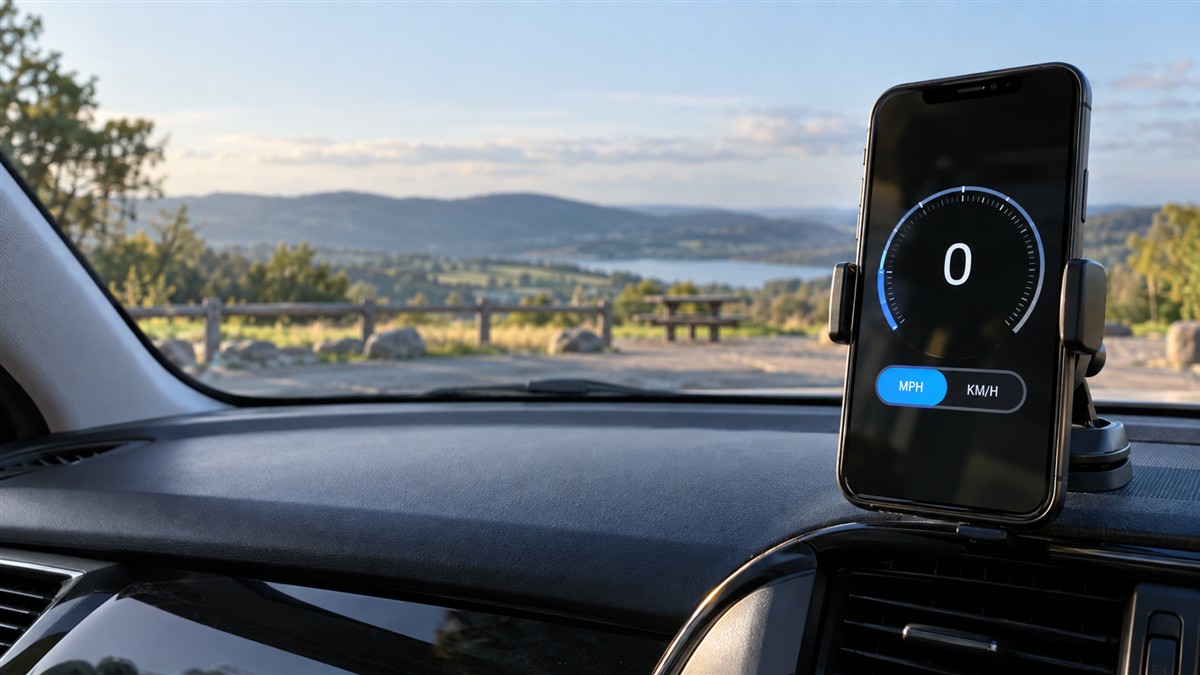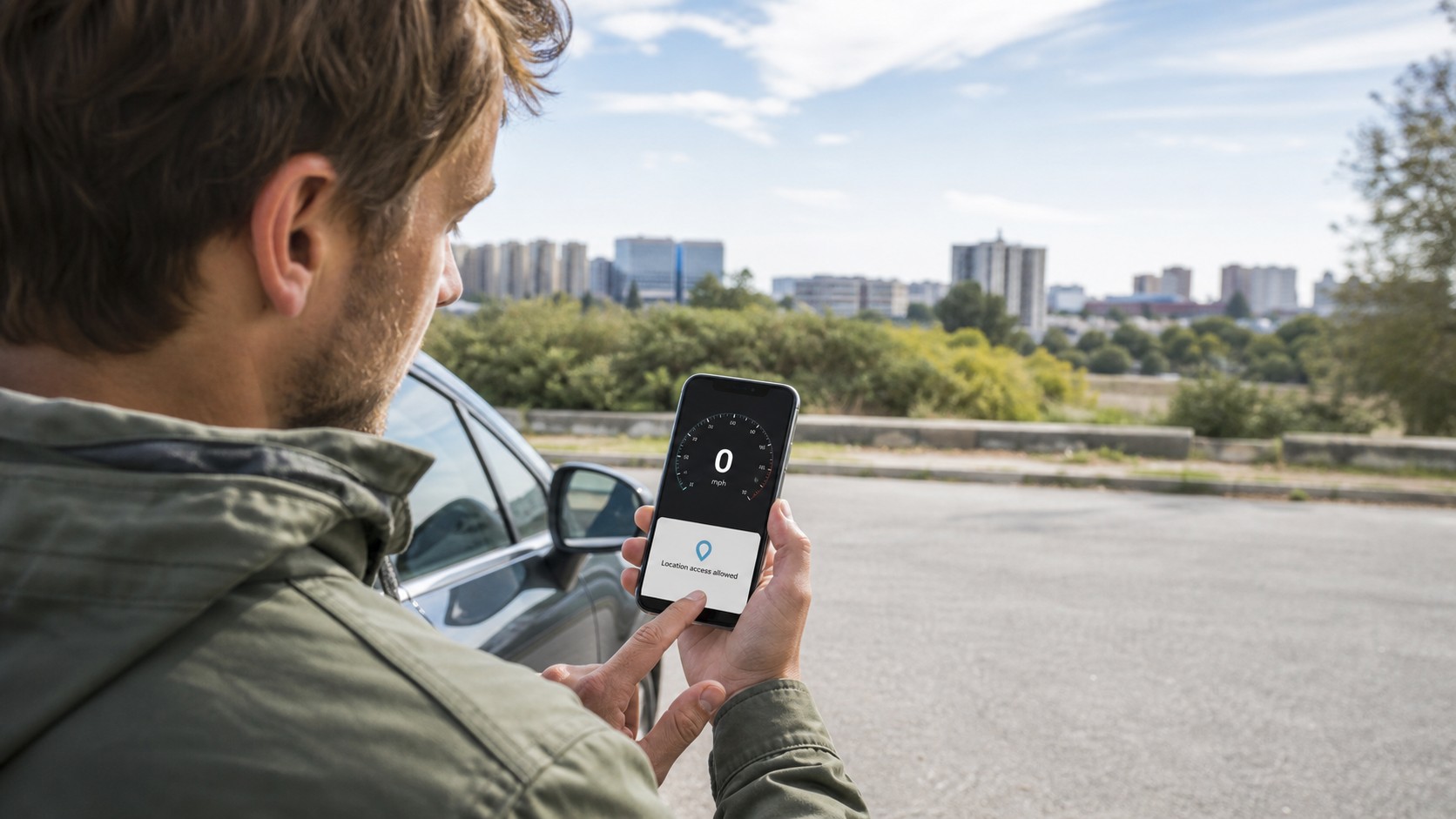
When an online speedometer is not working, the vehicle may be moving while the screen still says 0. That usually points to a location setting or weak GPS signal—not a broken speedometer. Most problems can be fixed in a minute once you check the right setting.
Start with the quickest test: open the SpeedyMeter online speedometer outdoors, tap Start and approve precise location. Move for several seconds in a safe, open area. If the number remains at zero, work through the checks below in order.

Quick fix: check these five things first
- Make sure the phone itself has Location turned on.
- Allow Location for the browser in Android or iPhone settings.
- Allow this website to use your location from the address-bar permissions menu.
- Enable precise location rather than an approximate area.
- Test outdoors while moving. GPS speed cannot appear while you are stationary, and buildings can block satellites.
After changing a permission, reload the page, tap Reset and then Start. Avoid changing several unrelated settings at once; testing after each fix makes the real cause easier to identify.
Why a GPS speedometer gets stuck at zero
A browser speedometer needs a stream of fresh positions. If the browser receives no location, receives only an old location or cannot detect movement yet, zero is the honest result.
The failure can happen at more than one level. Location may be disabled for the whole phone, denied to Chrome or Safari, blocked only for SpeedyMeter, limited to approximate accuracy, or paused by battery-saving software. A tunnel or metal roof can cause the same symptom even when every permission is correct.
Fix location permission in the browser
Chrome on Android
- Open SpeedyMeter in Chrome.
- Tap the icon beside the web address, then open Permissions or Site settings.
- Set Location to Allow.
- If Android asks whether Chrome may use precise location, enable it.
- Return to the page, reload it and tap Start.
If the site permission looks correct, open Android Settings, find Apps, choose Chrome, open Permissions and confirm that Location is allowed. Phone makers rename these menus, but the two permission layers—browser and website—remain the important idea.
Safari on iPhone
- Open iPhone Settings and go to Privacy & Security, then Location Services.
- Confirm Location Services is on.
- Find Safari Websites and choose While Using the App.
- Turn on Precise Location.
- In Safari, open the page settings for SpeedyMeter and allow Location if prompted.
If you previously tapped Don't Allow, Safari may remember that choice. Reset the permission for the site rather than waiting for the same prompt to appear repeatedly.
Why “location allowed” can still produce no speed
Permission only lets the browser ask for a location; it does not guarantee a good satellite fix. Try the following real-world checks:
- Step outside. Test away from a roof, parking garage or tall walls.
- Wait briefly. A phone that has just restarted or has been offline may need longer for its first fix.
- Hold it still. Waving the phone does not create ground speed and can make the position noisier.
- Move far enough. Walking a few deliberate steps is more useful than shaking the device at a desk.
- Check the system map. If the phone's map cannot locate you either, the problem is at the device or signal level, not the website.
Fix “GPS speed stuck at zero” in a vehicle
Do not troubleshoot while driving. Park safely or let a passenger handle the phone. Place the device where it has a reasonable view through a window, then test again.
Some vehicles use heat-reflective or metallic windscreen coatings that weaken satellite signals. Moving the phone toward a side window may help. Tunnels, covered stations and dense streets naturally cause interruptions. The reading should recover after the phone regains enough satellites.
For a vehicle-specific display, choose the relevant tool: Car Speedometer, Bus Speedometer, Bike Speedometer, Train Speedometer, Ship Speedometer or Flight Speedometer. They use the same phone location principle but provide speed ranges and units suited to the journey.
Turn off settings that interrupt live GPS
Battery Saver, Low Power Mode and manufacturer “sleeping apps” features can reduce background work. A speedometer is most reliable when the page remains visible and the screen stays awake.
- Temporarily disable battery saving while testing.
- Keep the browser in the foreground.
- Do not lock the screen during a live session.
- Close another navigation app only if the phone is struggling; modern phones normally allow more than one location user.
- Update the browser if it is very old.
Private browsing can also forget site permissions between sessions. That is useful for privacy, but it means you may need to approve location again.
Does the speedometer need internet?
Internet and GPS are separate. You normally need a connection to load an online tool for the first time, while the live position can come from satellites. Network assistance also helps the phone find satellites faster.
If your problem appears only after mobile data disappears, open and start the speedometer before entering the dead zone. The full explanation is in Does a GPS Speedometer Work Without Internet?
When the reading jumps instead of staying at zero
A jump from 0 to an impossible number is a different problem. The receiver probably delivered two uncertain positions and the calculated distance between them was too large. Keep watching for several seconds. Good software can smooth brief errors, but no browser can repair a consistently blocked signal.
Open sky, steady movement and several consecutive readings matter more than one dramatic number. Read the GPS speedometer accuracy guide for signal reflection, urban canyons and device limits.
A simple diagnosis table
| What you see | Likely cause | Best next step |
|---|---|---|
| Permission denied message | Website or browser permission blocked | Allow Location at both levels and reload. |
| Waiting for GPS | No usable position yet | Move outdoors, keep the phone still and wait. |
| 0 while stationary | Normal behavior | Move safely for several seconds. |
| 0 while moving | Approximate location, weak signal or paused updates | Enable precise location and test near a window. |
| Large brief spikes | Reflected or inaccurate positions | Ignore one-off spikes and improve sky visibility. |
| Stops when screen locks | Power management | Keep the page open and disable battery saving for the test. |
Frequently asked questions
Why does my online speedometer say zero?
You may be stationary, location permission may be blocked, precise location may be off or the phone may not have a usable GPS signal yet.
Why is location permission not appearing?
The browser may remember an earlier decision. Open the website permissions beside the address bar and reset Location, then reload the page.
Can a laptop use an online GPS speedometer?
Only reliably if it has a suitable location source. Many laptops estimate location from nearby networks and do not include the satellite receiver found in phones.
Why does it work outside but not indoors?
Satellite signals are weak when they reach earth. Roofs, concrete, metal and coated glass can block or reflect them.
Should I clear all browser data?
Usually not. Reset the location permission for this site first. Clearing all data logs you out of other websites and is rarely necessary for one blocked permission.